> ## Documentation Index
> Fetch the complete documentation index at: https://docs.uw.stargate.is/llms.txt
> Use this file to discover all available pages before exploring further.
# 03 - Cash In
> Tutorial on How to Cash In as an agent.
In this tutorial, you will learn how to perform cash in operations as an **agent** using the Universal Wallet platform.
```mermaid theme={null}
graph TD
A[Agent] -->|Cash In| B[End User]
```
We are going to perform a cash in operation where an agent adds funds to an end user's wallet.
The agent we will be using for this tutorial is a demo agent account (`+234 8123456780`) created in the [Onboard New Agents](./onboard-new-agents.mdx) tutorial.
And the end user we will be cashing in for is a demo end user account with the mobile phone number `+234 8123456781`.
Head over to the Universal Wallet Demo ([https://uw.stargate.is](https://uw.stargate.is)) and log in with the agent account credentials provided in the [Onboard New Agents](./onboard-new-agents.mdx) tutorial.
For the purpose of this tutorial, you can use the following demo agent account credentials:
* **2FA Code:** `SHDHTVOZGDG6EKKFJ77HU6KZNQUNJ4N3` (to be used in your authenticator app) or scan the QR code below:
 * **Phone Number:** `+234 8123456780`
Once logged in, navigate to the Operations section by clicking on the "Operations" tab in the main navigation menu.
* **Phone Number:** `+234 8123456780`
Once logged in, navigate to the Operations section by clicking on the "Operations" tab in the main navigation menu.
 In the Operations tab, locate and click on the "New Operation" button to start the cash in process.
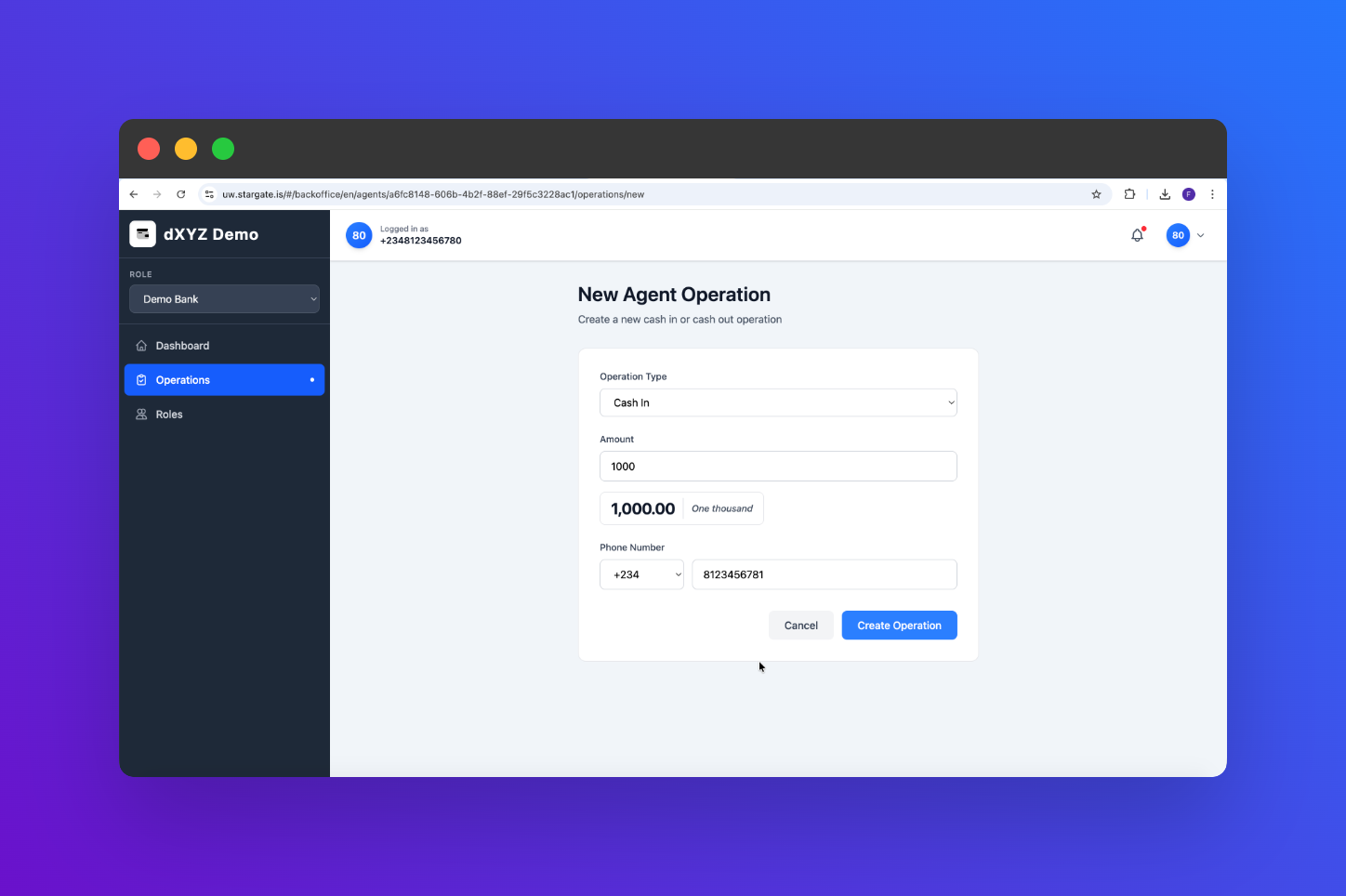
Fill in the required details for the cash in transaction, including:
* Operation Type (select "Cash In")
* Amount
* End User's Phone Number (`+234 8123456781`)
In the Operations tab, locate and click on the "New Operation" button to start the cash in process.
Fill in the required details for the cash in transaction, including:
* Operation Type (select "Cash In")
* Amount
* End User's Phone Number (`+234 8123456781`)
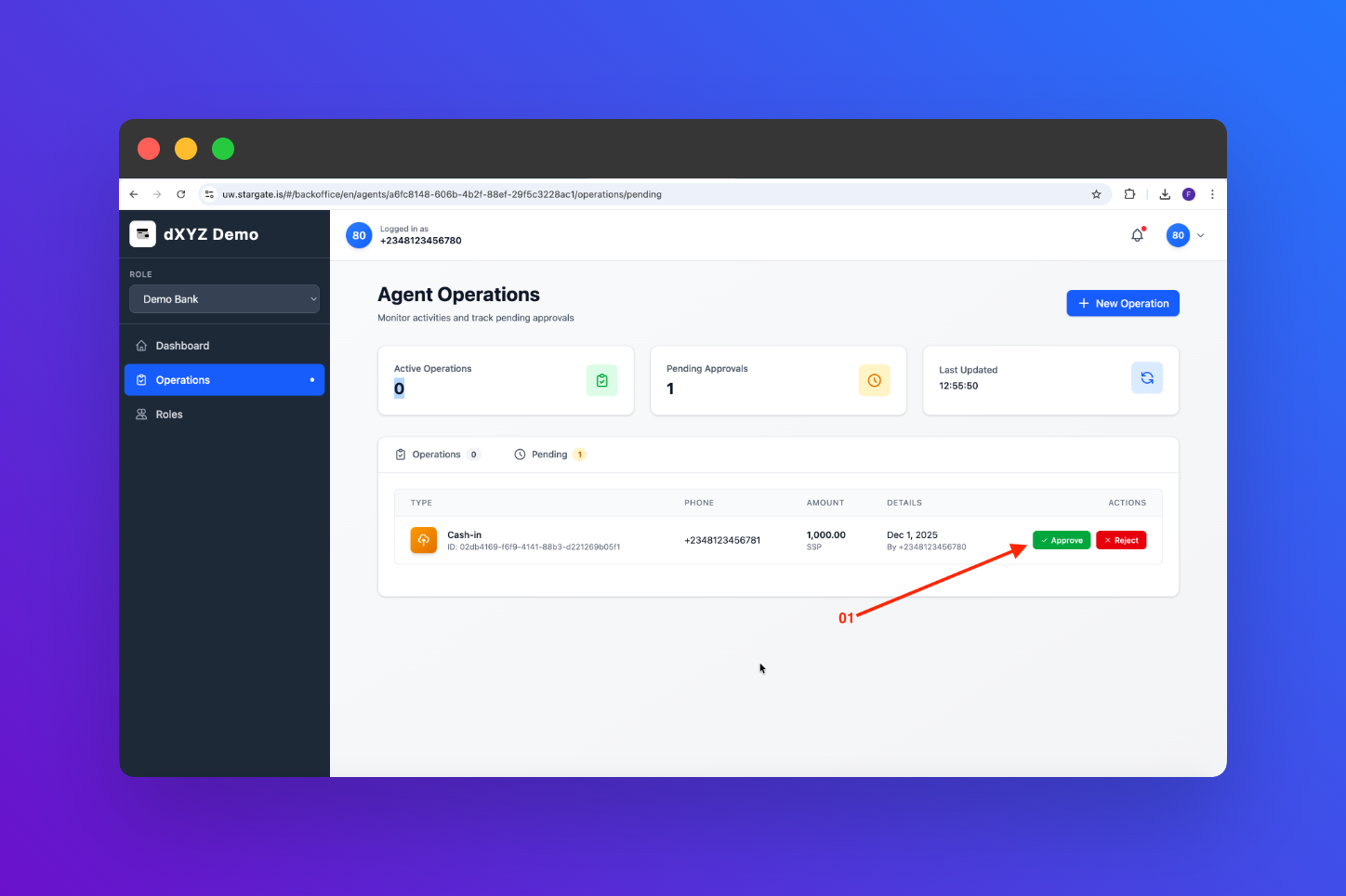
 Review the cash in details you have entered. If everything looks correct, click on the "Approve" button to complete the cash in process.
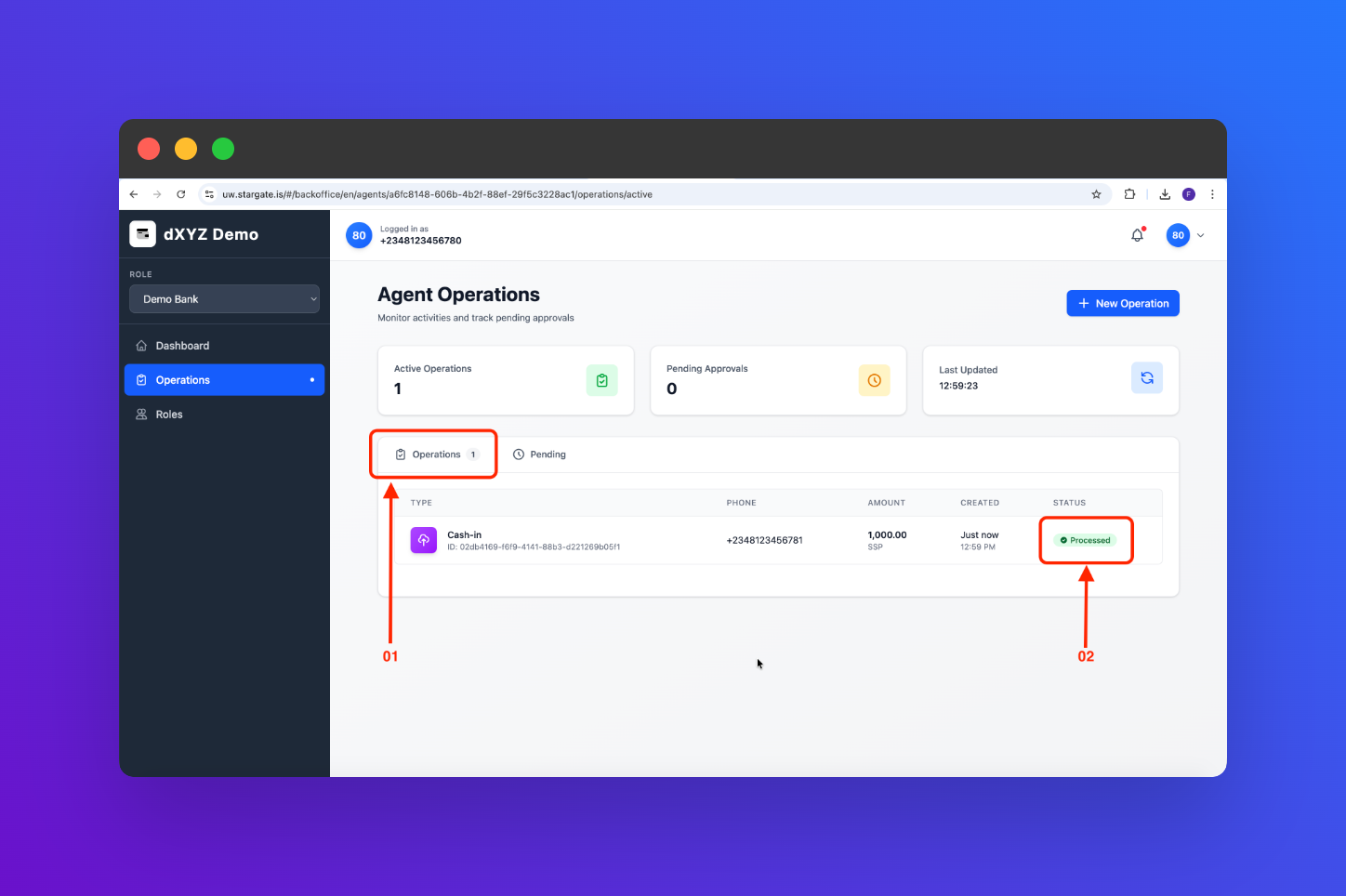
 After completing the cash in, navigate to your transaction history to verify that the cash in transaction has been successfully processed and your balance has been updated.