> ## Documentation Index
> Fetch the complete documentation index at: https://docs.uw.stargate.is/llms.txt
> Use this file to discover all available pages before exploring further.
# 02 - Mint New Tokens
> Tutorial on How to Mint New Tokens
In this tutorial, you will learn how to mint new tokens as an **issuer** using the Universal Wallet platform.
```mermaid theme={null}
graph TD
A[Issuer] -->|Mint Tokens| B[Agent]
```
Head over to the Universal Wallet Demo ([https://uw.stargate.is](https://uw.stargate.is)) and log in with the issuer account credentials provided in the [Objectives](./objectives.mdx) tutorial.
Once logged in, navigate to the Token Distribution Dashboard by clicking on the "Issuer" tab in the main navigation menu.
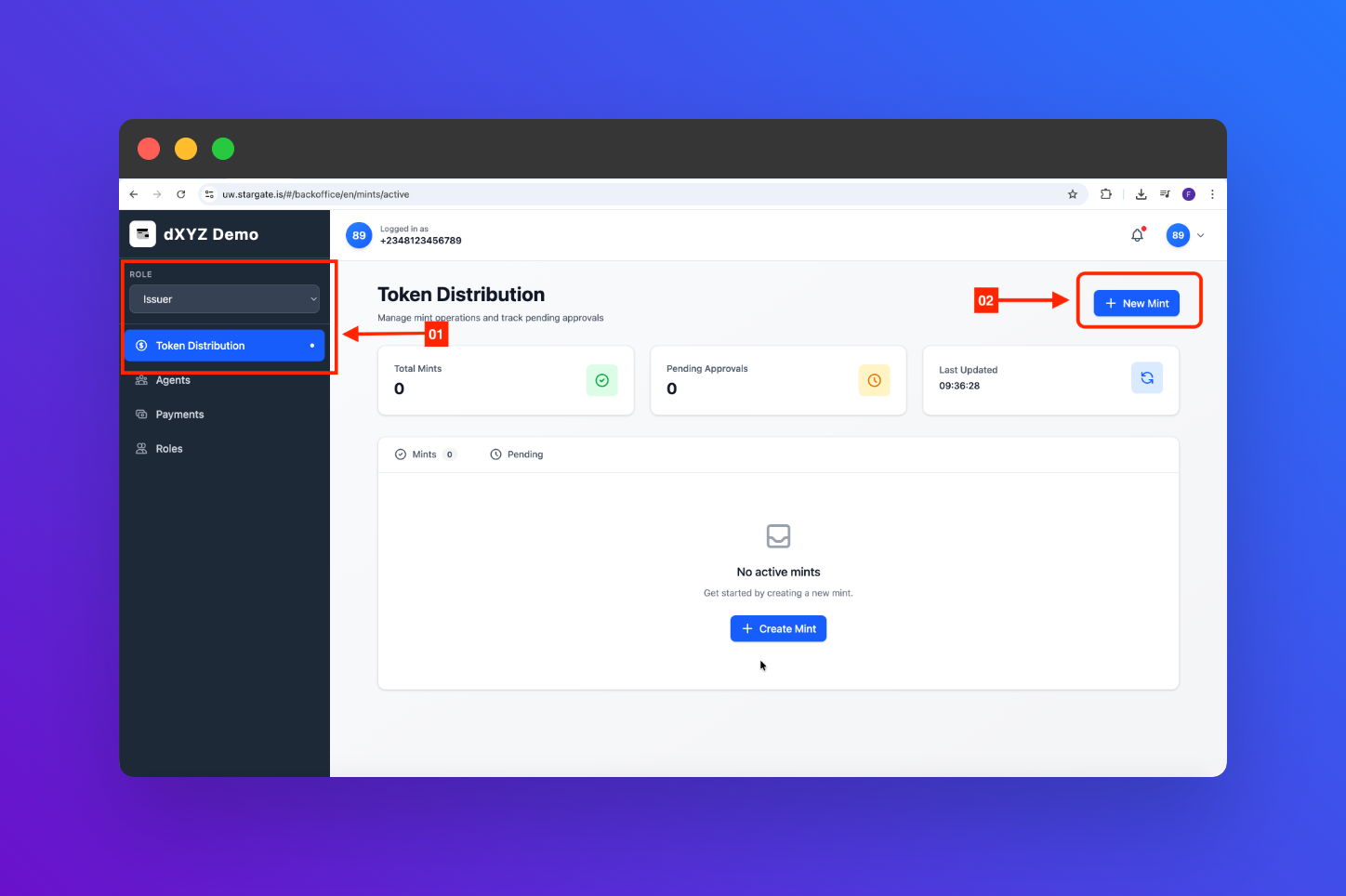 In the Token Distribution Dashboard, locate and click on the "New Mint" button to start the token minting process.
Fill in the required details for the new tokens you wish to mint, including:
* Agent
* Amount
In the Token Distribution Dashboard, locate and click on the "New Mint" button to start the token minting process.
Fill in the required details for the new tokens you wish to mint, including:
* Agent
* Amount
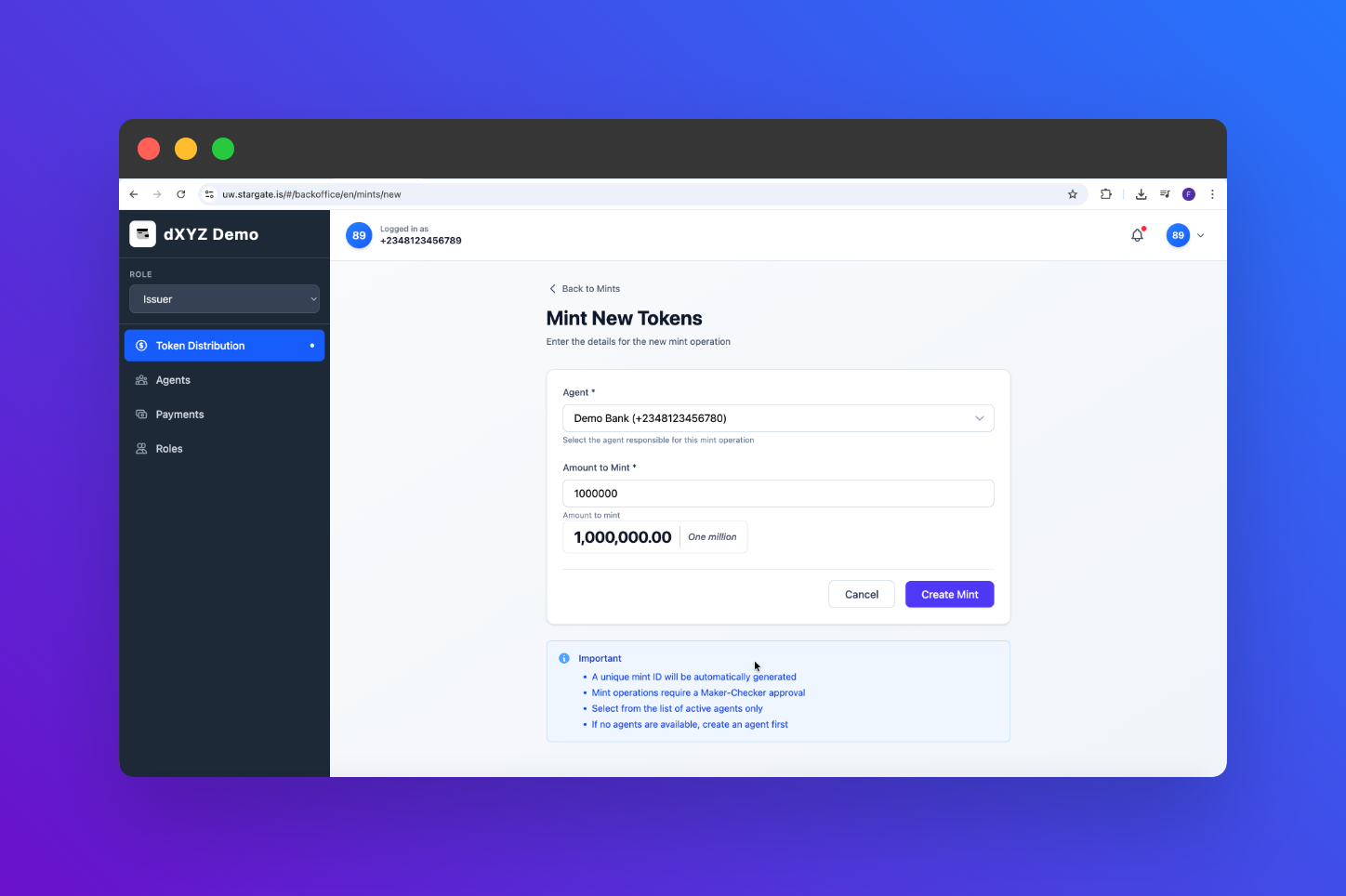 Review the minting details you have entered. If everything looks correct, click on the "Confirm" button to mint the new tokens.
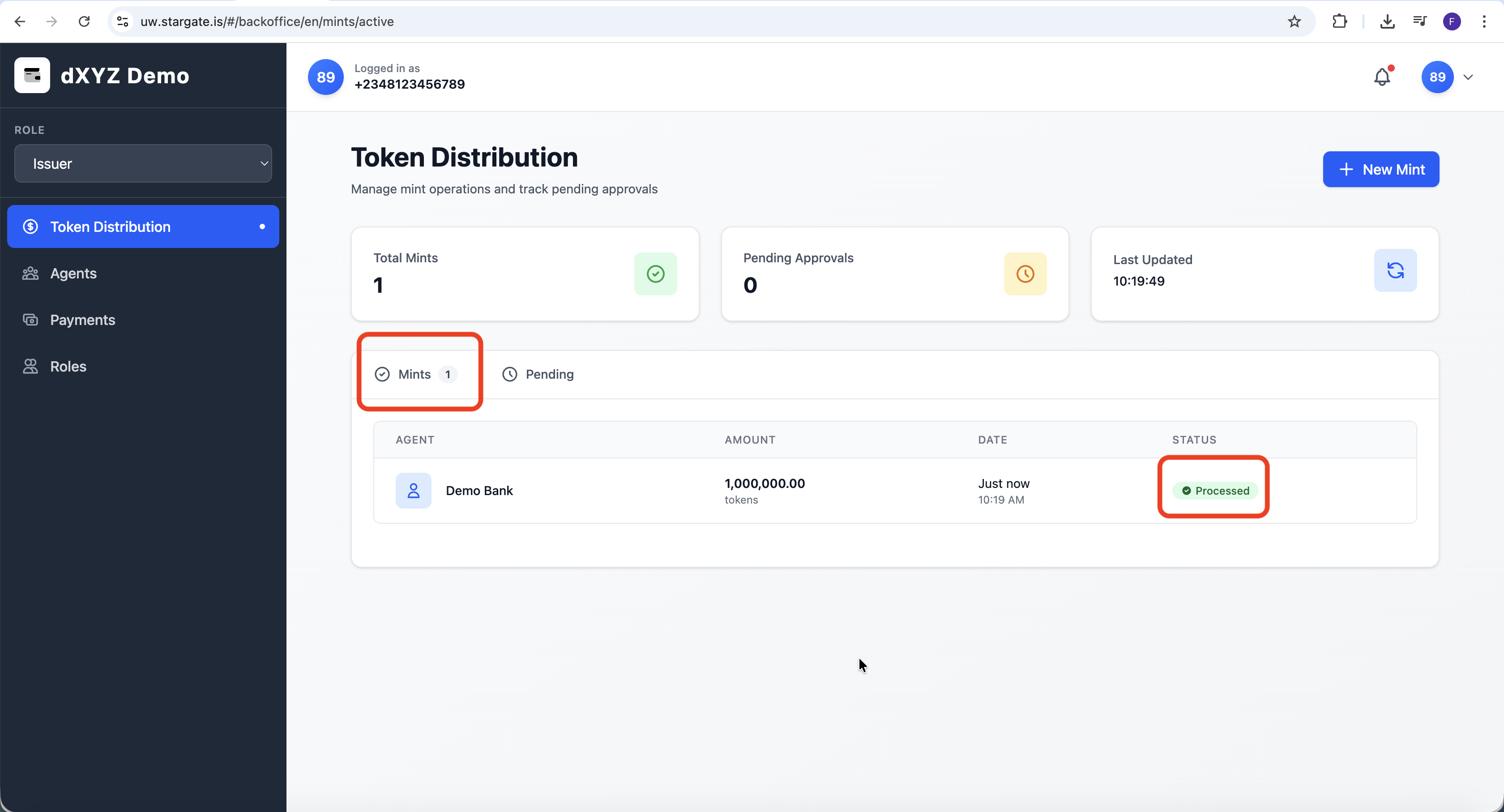
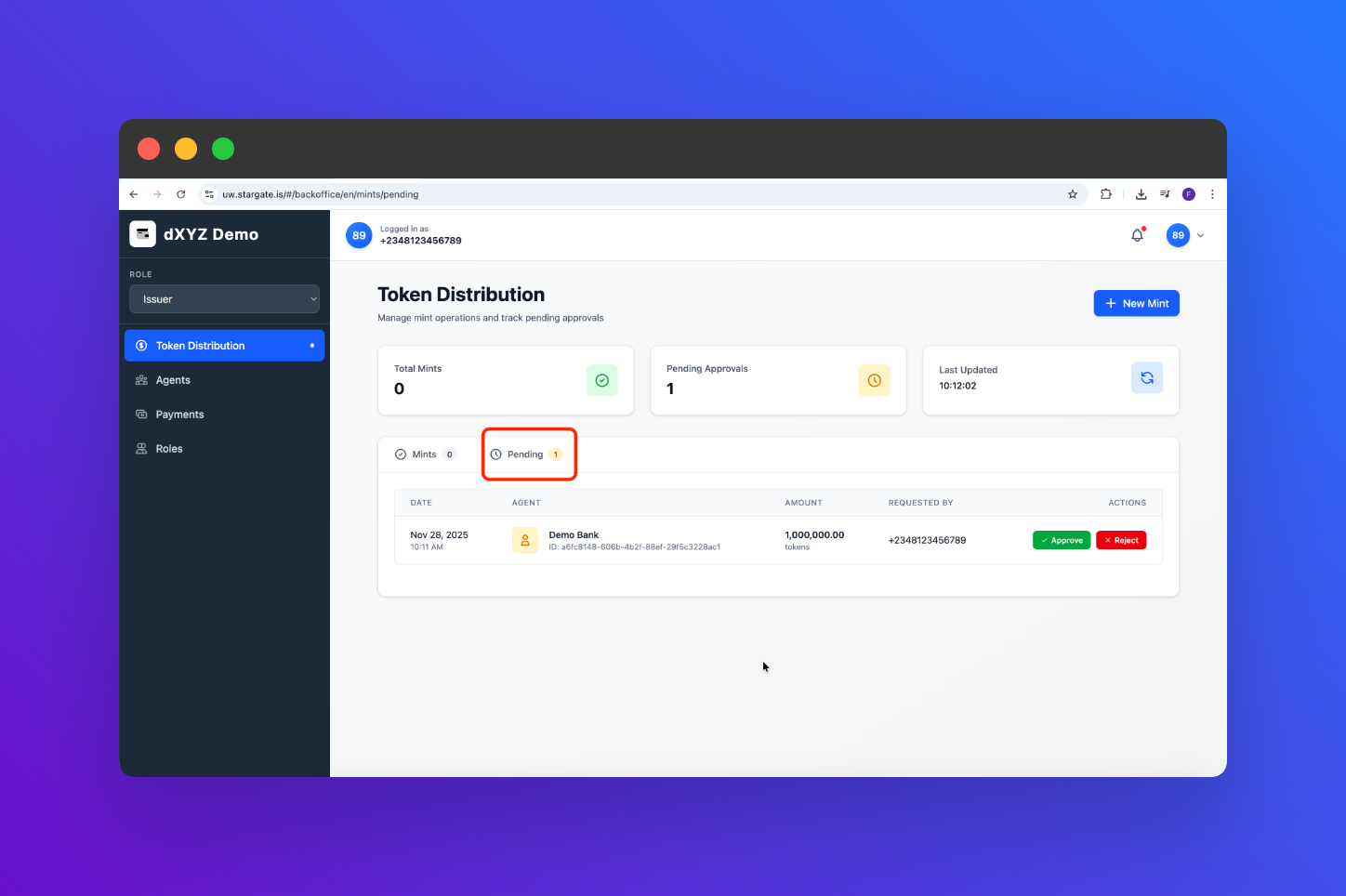 After minting, navigate to your token list in the Token Distribution Dashboard to verify that the new tokens have been successfully minted and are available for distribution.